Probatio inside your system
Probatio operations from the file context menu, documents that open with a double click and modules at hand from the system tray icon. Everything is turned on and off from Settings → System, without editing the registry or Automator by hand.
Contents
1. Context menu
In Settings → System → System integration the “Install context menu extension” button adds Probatio actions to the context menu. On macOS they become Finder Quick Actions, in ~/Library/Services; on Windows File Explorer entries, written for the current user only (HKCU), with no administrator rights.
- On any file: Generate hash, Verify hash, Sign, Verify signature, Timestamp, Open in Hex, Analyse file, Verify forensic image, Compare.
- On images: Analyse image.
- On PDFs, archives and images: Open with Probatio, in the dedicated window (see §3). The entry appears only on these types, not on every file of the system.
- On folders: Scan folder, Create folder manifest.
On macOS, if the actions do not show up straight away, enable them in System Settings → Keyboard → Services, or restart the Finder. Reinstalling is harmless: entries from an earlier version are replaced.
2. Default app
In the same tab, “Default app” makes Probatio open four families of files with a double click, each chosen separately: PDF, images, camera RAW and email messages (EML, EMLX, MSG). Each file goes to its own window: the PDF to the sandboxed PDF reader, the image to the viewer, the email to the email viewer.
- macOS: Probatio sets itself as the default handler, and each type can be switched back to Preview with one click.
- Windows: the system does not let a program set itself. Probatio registers among the apps able to open those types and opens the Settings → Default apps page, where the choice stays with you.
3. “Open with Probatio”
A PDF, an archive or an image opened from the system — double click, “Open with”, context menu — lands straight in its own window, without going through the main window. Opening several files, Probatio remains a single process: new files reach the running app instead of starting another copy.
The same applies inside the app: from a file's details in the Inventory or from an email's attachment tree, “Open with Probatio” opens the file in the right module, in a new window.
4. Tray icon and start at login
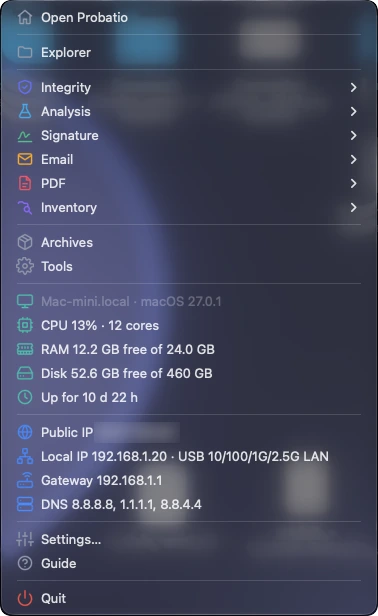
Probatio stays available in the macOS menu bar or the Windows notification area: closing the window hides it, it does not quit the app; to quit, use “Quit” in the icon menu. The menu lists every module with its icon, Explorer first and then grouped as in the sidebar (Integrity, Analysis, Signature, Email, PDF, Inventory, then Archives and Tools), plus Settings and Guide, in the language chosen in the app.
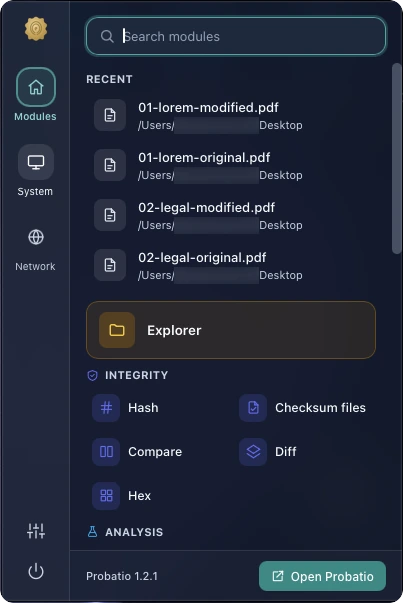
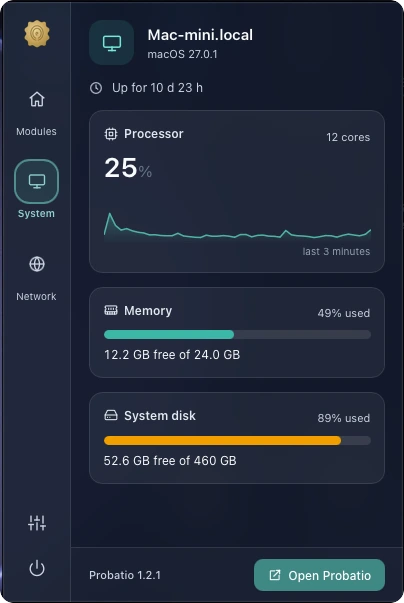
A left click on the icon opens a panel below it (above it, when the Windows taskbar is at the bottom), with the system's blurred background; it closes when you click elsewhere or press Esc, and follows the app's language and light or dark theme. It has three tabs:
- Modules: module search, recently opened files (they reopen in the module suited to their type), every group with its icons and Explorer highlighted.
- System: CPU with a chart of the last three minutes, memory and disk with bars that change colour above 70% and 90%, uptime.
- Network: connection status, public IP, internal IP with its interface, gateway, DNS, IPv6; every row is copied with a click.
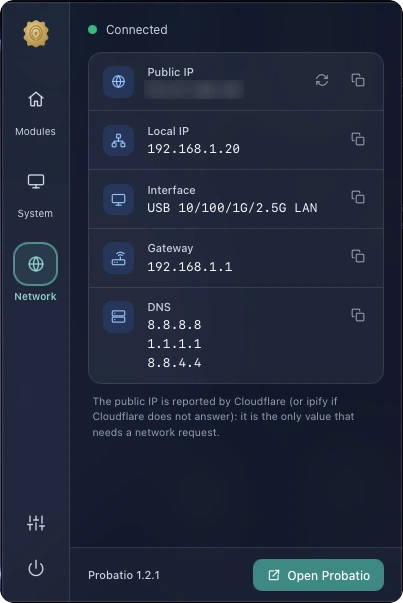
A right click opens the menu, with the same System and Network sections, values that refresh by themselves and rows copied with a click. The public IP is the only item that needs the network: Cloudflare reports it (or ipify, if Cloudflare does not answer), at start-up, when the network changes and every 15 minutes. Everything else is read from the computer.
In Settings → System you can also have Probatio start when the computer starts: it opens minimised to the tray.
5. Removing everything
Each integration has its reverse button in the same tab: “Remove” for the context menu, “Back to Preview” (macOS) or “Remove registration” (Windows) for the default app, the switch for start at login.