Inspection

Explorer

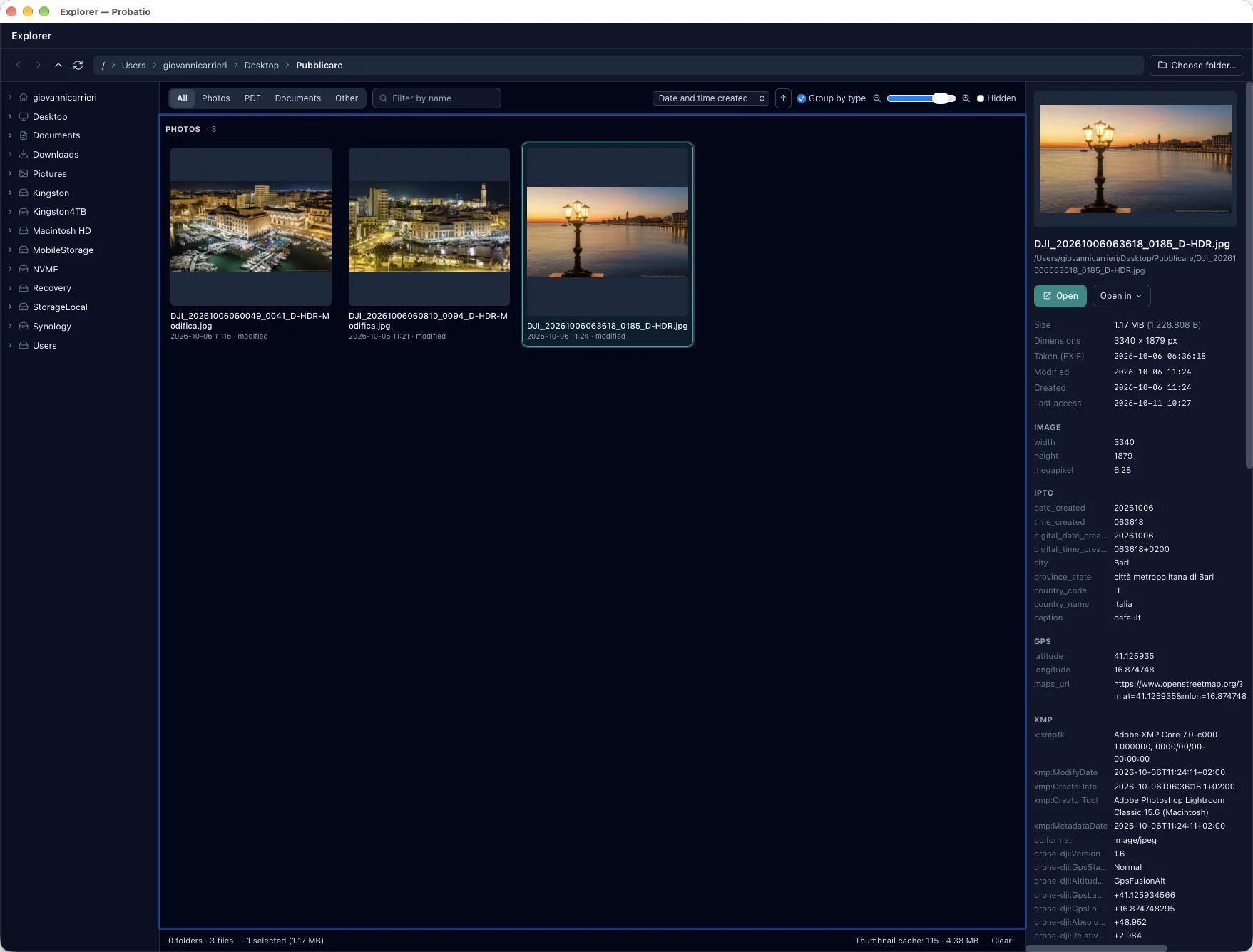
Explorer is Probatio's starting point: a folder browser with thumbnails, in the style of ACDSee, with the folder tree on the left, the thumbnail grid in the middle and the large preview with details on the right. Unlike Finder and File Explorer it sorts files by the date written inside the file (when a photo was taken, a PDF created, an email sent), and from each file a double click or a right click takes you to the Probatio module you need. Nothing is written into the browsed folder: thumbnails are made in an isolated process and kept in the app's data.

Probatio Explorer on a folder with three photos: folder tree on the left, thumbnails grouped under Photos in the middle, details of the selected photo on the right with EXIF capture date, IPTC, GPS and XMP
Three drone photos, sorted by date and time created and grouped by type. In the details the same photo tells two stories: taken at 06:36 (EXIF), edited at 11:24 in Lightroom (XMP).
What it does

What the Explorer module does

Thumbnails of photos, PDFs and documents

Photos, RAW and HEIC included; PDFs; Word and other office documents, with the thumbnail saved by the program or a page rebuilt from title, author and text. They are made in the isolated helper and kept in the app's data.

Content date

The date written inside the file: capture for photos, creation for PDFs and documents, recording for video and audio, sending for emails. Files that declare none are sorted by modification date, and under each thumbnail the source of the date is shown.

Sort, group, filter

Sort by name, content date, modification date, creation date, size or type, also reversed. Group by type splits the grid into sections with counts (Photos, PDFs, Documents, Email, Video, Archives…); filters isolate Photos, PDFs, Documents or Other and search by name.

Every file in the right module

A double click opens photos in the Image viewer, PDFs in the reader, emails and archives in their own windows, E01/DD forensic images in the verification, executables in Code signing, everything else in File analysis.

Every action on right click

Hashes, verification, checksum files, timestamp, analysis, signature, email and PEC, comparison of two files (PDF comparison when both are PDFs), copy path, show in Finder or File Explorer. On folders: scan, manifest, duplicates, BagIt.

Folder statistics

Selecting a folder shows the total size, the number of files (hidden ones included) and subfolders, and the breakdown by type with count, space used and extensions (“Photos 52 — png 49 · jpg 3”). The count walks every level in the background, with a progress bar.

Details and a separate window

File-system dates, content date and metadata of the selected file. Explorer also opens in a window of its own: actions launched from there open the modules in the main window.

Step by step

How it works

  1. Open Explorer from the sidebar, the Home or the tray icon and pick a folder in the tree.
  2. Sort by content date, group by type and filter what you need.
  3. Double click to open the file in the right module, or right click for hashes, verification, analysis, comparison.
FAQ

Frequently asked questions

Does Explorer write anything into the folder I browse?
No: thumbnails are made in an isolated process and kept in the app's data. To make them, though, Probatio reads the files, and where the system records last access that date may change: on original evidence, work through a write-blocker or on a read-only copy.
What is the “content date”?
It is the date written inside the file, not the file-system one: when a photo was taken, a PDF or document created, a video recorded, an email sent. A copy or a download changes the modification date, not this one. If the file declares none, the modification date is used, and the source of the date is shown under the thumbnail.